Float the tab you are viewing
Click the extension icon to open the current page in a compact, always-visible window.
Chrome extension · Featured
Float a webpage above your other work. Open the current tab or any link, then move and resize the window to fit your screen.

Built for real multitasking
Keep the useful part of the web above your current task—without switching tabs every few seconds.
Click the extension icon to open the current page in a compact, always-visible window.
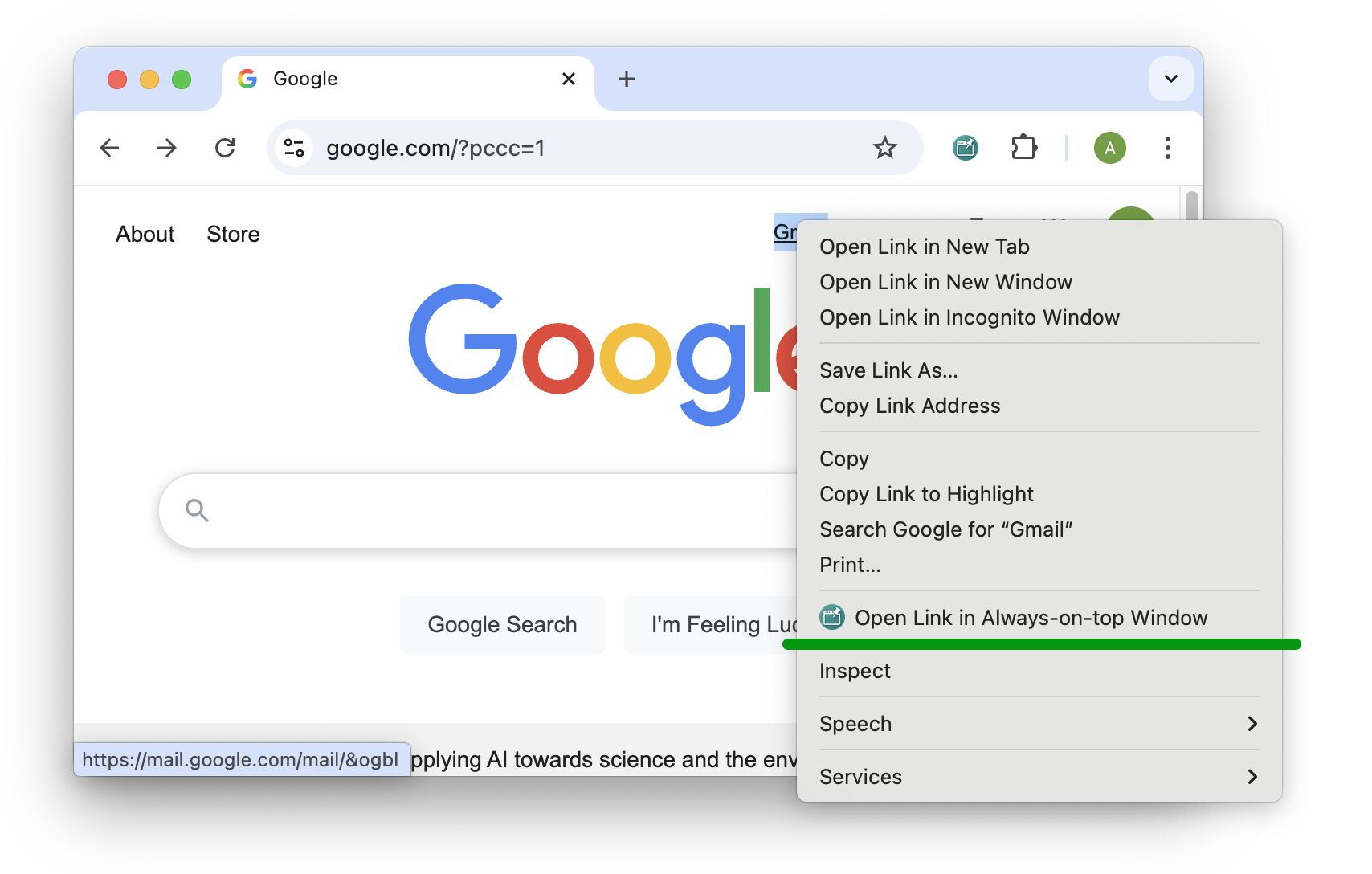
Right-click a link and launch it directly into an Always-on-Top Window.
Move and resize the floating window so it supports your work without covering it.
Automatically reload time-sensitive pages at one of five optional intervals.
Useful when context matters
Keep API references, build output or status pages visible while you code.
Follow an explanation while you practise in another app or browser window.
Watch changing data without repeatedly leaving your main task.
Hold a useful webpage nearby while you draft, compare or research.
Two quick ways to launch
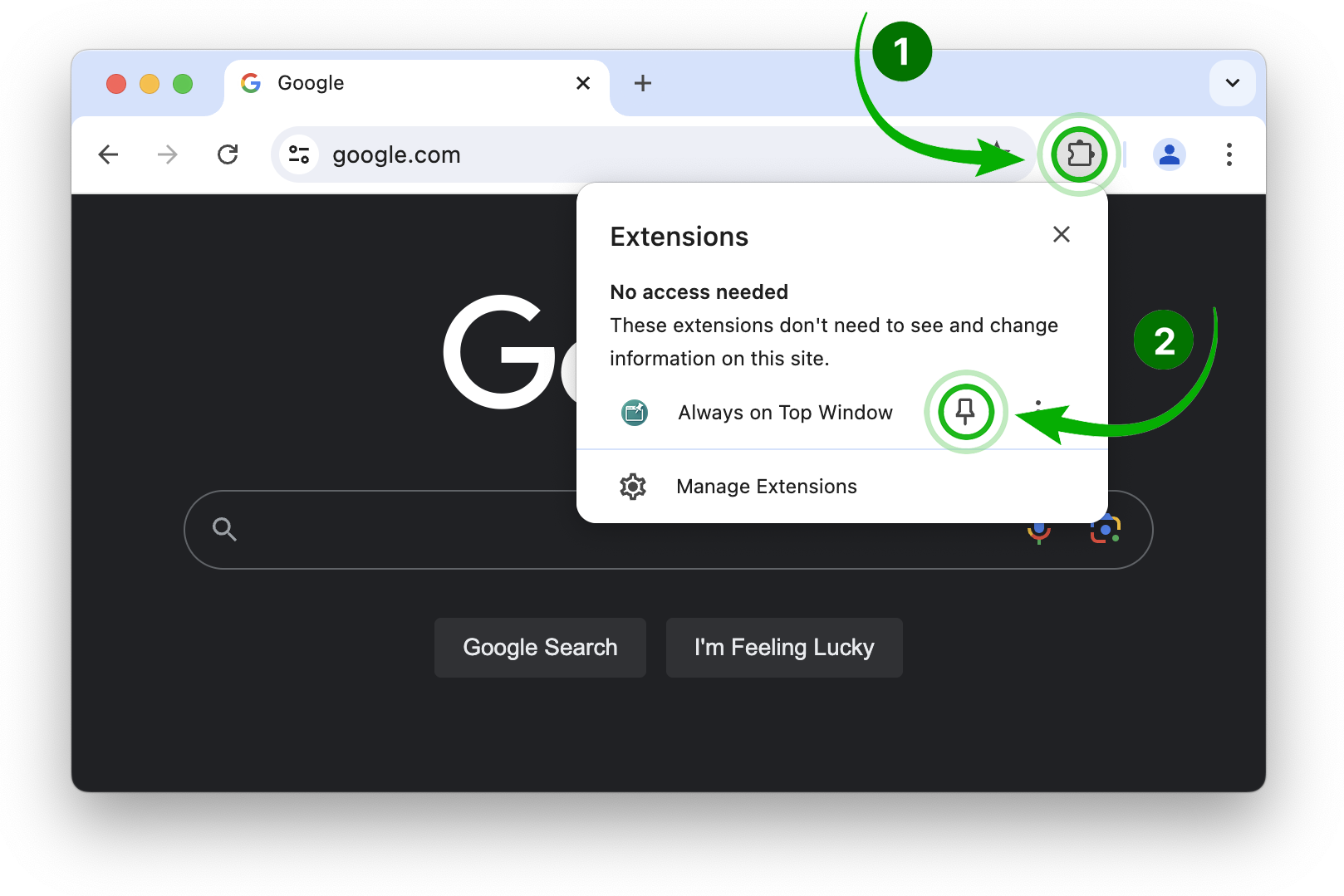
Pin the extension, open the page you need, then click its icon.
Right-click a link and choose “Open Link in Always-on-top Window”.
Important to know
The extension floats web content from Chrome. It does not pin other desktop applications.
Keep the original browser tab open. Closing it also closes the floating window.
The floating view shows the webpage without the usual browser controls, helping the content stay focused.
Pricing
Pay monthly, yearly or once for lifetime access. Every plan includes all features.
$3/month
$21/year
$40one-time
Quick answers
Yes. Open the page, then click the extension icon in the Chrome toolbar.
Yes. Right-click a link and select the Always-on-Top Window option from the context menu.
Yes. Optional intervals are 5, 10 or 30 seconds, and 1 or 5 minutes.
No. The extension is designed to float web pages opened through Chrome.
Less tab switching
Email our support team with any questions about Always on Top.